
Branding your portal
Put your own name, logo, colours and legal links on your METAFILES portal in Administration settings, Theming.
Your portal carries the METAFILES brand by default. You can make it yours: your company name, logo, colours and legal links on the sign-in page, in the browser tab and in e-mails. Your MSP can set a brand for you too, and can re-apply it at any time.
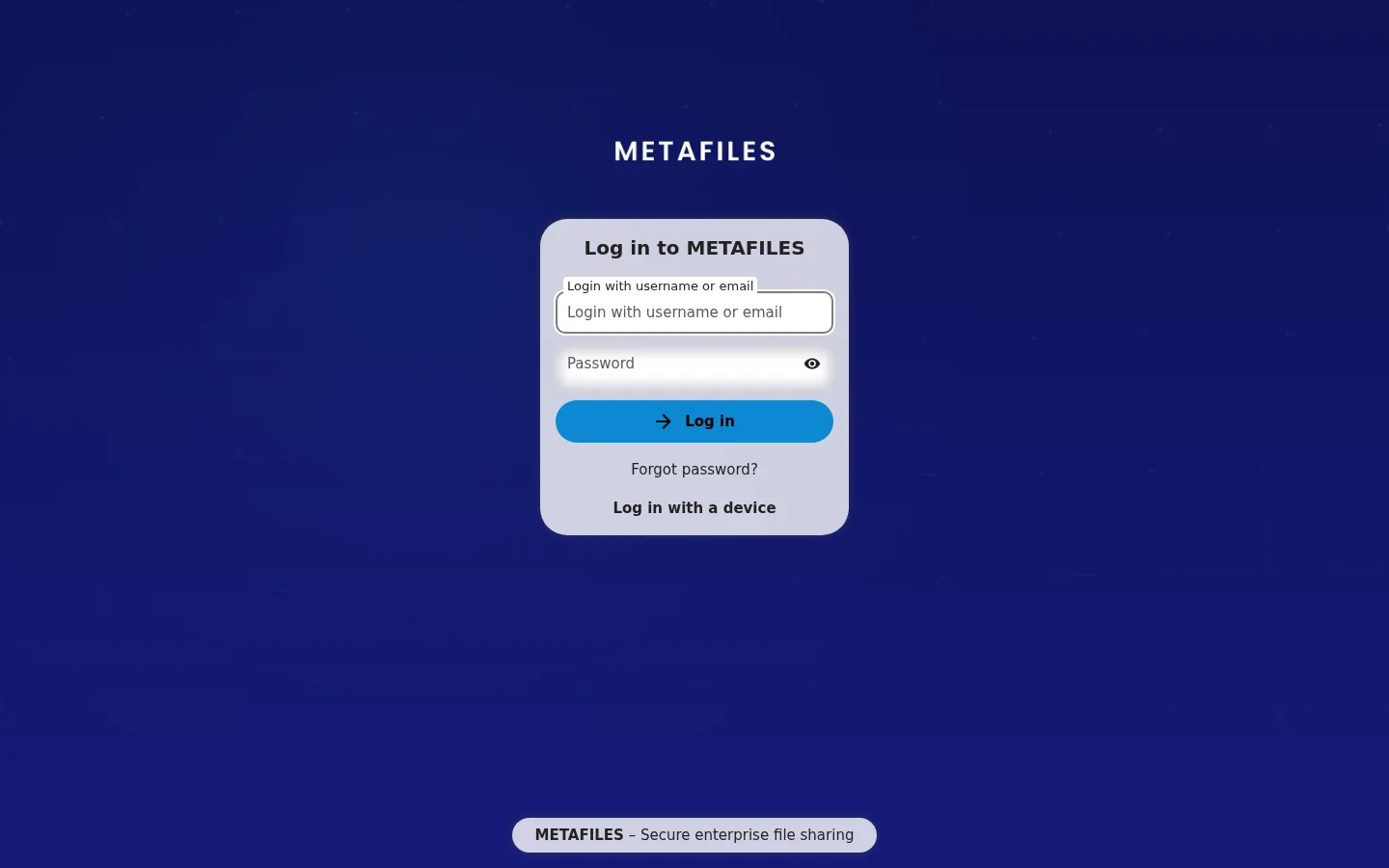 The sign-in page shows your name, slogan, colour and background.
1. Who sets the brand
| Where | What | Notes |
|---|---|---|
| Your MSP | Name, slogan, colour, web link, logo, header, favicon and background images | Your MSP can re-apply its brand over a change you made. |
| You: Administration settings → Theming | Everything listed below | Your change is kept unless your MSP has locked branding or changes it after you. See What your MSP controls. |
2. Change the brand
Open Administration settings → Theming.
| Field | What it changes | Advice |
|---|---|---|
| Name | The product name in the page title, e-mails and sign-in page | 1 to 60 characters |
| Web link | Where the logo and footer link go | A full https:// address |
| Slogan | The line under the name on the sign-in page | Up to 120 characters; avoid quotes, $, \ and line breaks |
| Primary colour | Buttons and header | A colour such as #179df2 (the METAFILES default) |
| Background and login image | The sign-in page background | PNG, JPEG or WebP, at most 2 MiB and 4096 pixels |
| Logo, header logo, favicon | The marks | Same image rules. SVG images are refused by your MSP's branding tool, so use PNG. |
| Legal notice link, privacy policy link | Links on the sign-in page and footer | Full https:// addresses |
Steps:
- Change a field. Each field is saved when you leave it.
- Reload the page with a hard refresh (Ctrl+F5 on Windows and Linux, Cmd+Shift+R on a Mac) to see the result.
- If other people still see an old image, it is held in a cache for a while. It updates when the cache expires; your MSP can clear it sooner.
Users cannot change the theme for themselves: everyone in your organisation sees your brand.
The online office editor shows your portal name in its title.
3. Tell your users where to get the apps
The portal does not show a "get the apps" box. Send your users the download page, https://dl.dmsvault.cloud/metafiles/, or link it from your intranet. See Downloads.
If you or your MSP set your own download address in your brand, that one is used instead.
4. What is not branded per organisation
- The METAFILES desktop and mobile apps are one product for everyone. They show the METAFILES name, not your brand.
- The apps' Settings → Legal Notice shows the open-source copyright notice their licence requires. The apps are based on open-source software licensed under the GPL; the source offer is on the download page.