
The web portal
Sign in at your organisation's address, then upload, download, share, edit Office documents and call colleagues from your browser.
The web portal is METAFILES in your browser. Nothing to install: open your organisation's address, sign in, and you can work with your files, share them, edit documents together and call colleagues. It is also how you sign in your desktop and phone apps.
1. Sign in
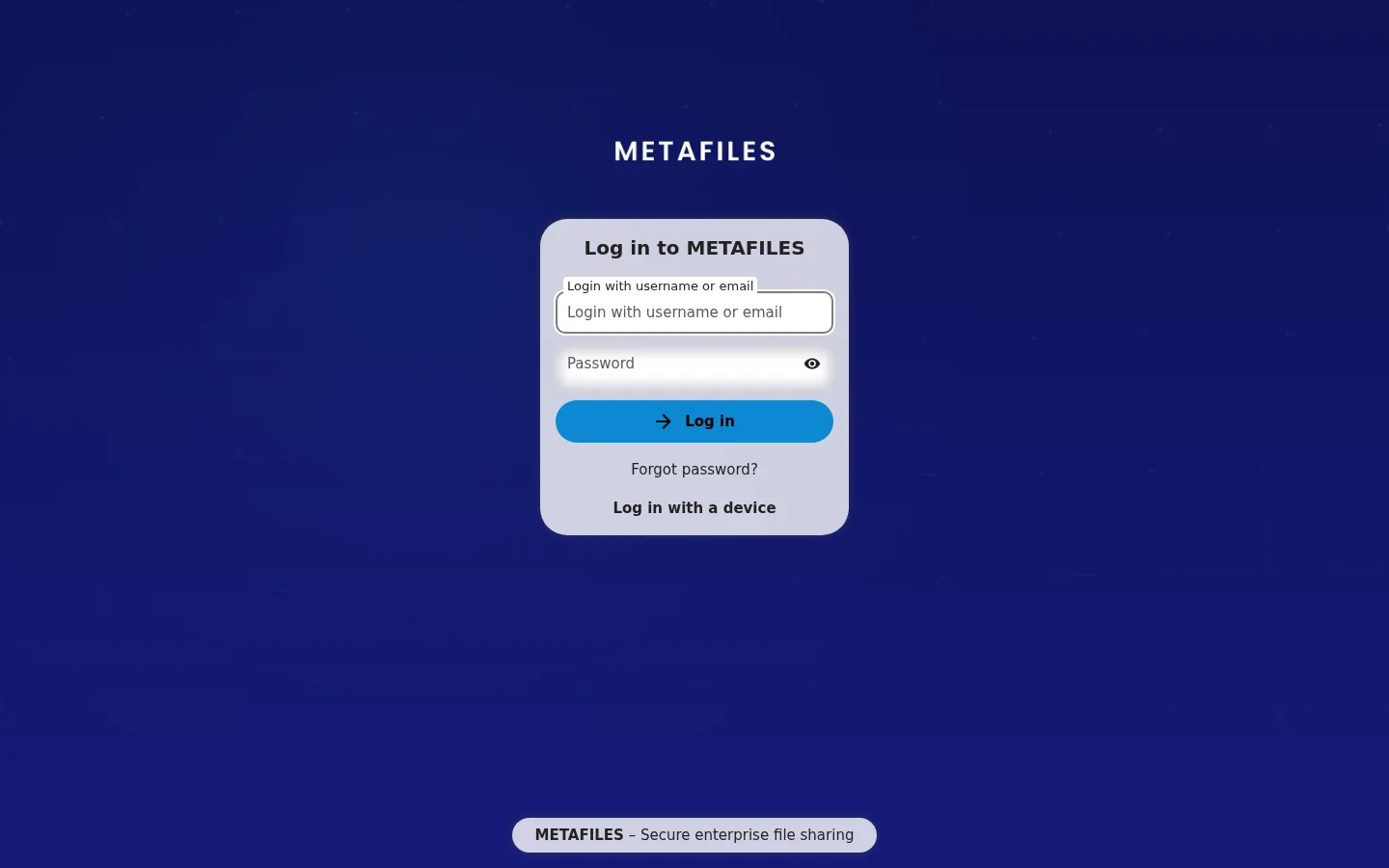
- Open your organisation's address,
https://<organisation>.dmsvault.cloud. Your administrator tells you which one (for examplehttps://acme.dmsvault.cloud). - The sign-in page shows METAFILES or your organisation's own brand.
- Type your user name (or e-mail) and password, and click Log in.
- If your organisation requires two-factor sign-in: - the first time, you are asked to set up a second factor: scan the QR code with an authenticator app on your phone and save the backup codes somewhere safe; - after that, you type the 6-digit code from your authenticator app.
- Change your first password: avatar (top right) → Personal settings → Security → Password.
If something goes wrong:
| You see | What it means |
|---|---|
| A page saying the organisation is suspended | Your organisation's service is paused. Nobody can sign in until it is resumed. Contact your administrator. |
| Sign-in becomes very slow (about 25 seconds) after wrong passwords | Protection against password guessing has slowed down your network address. Wait a while, or ask your administrator. |
| Your account is disabled after several wrong passwords | Your administrator can enable it again. |
2. Upload and download
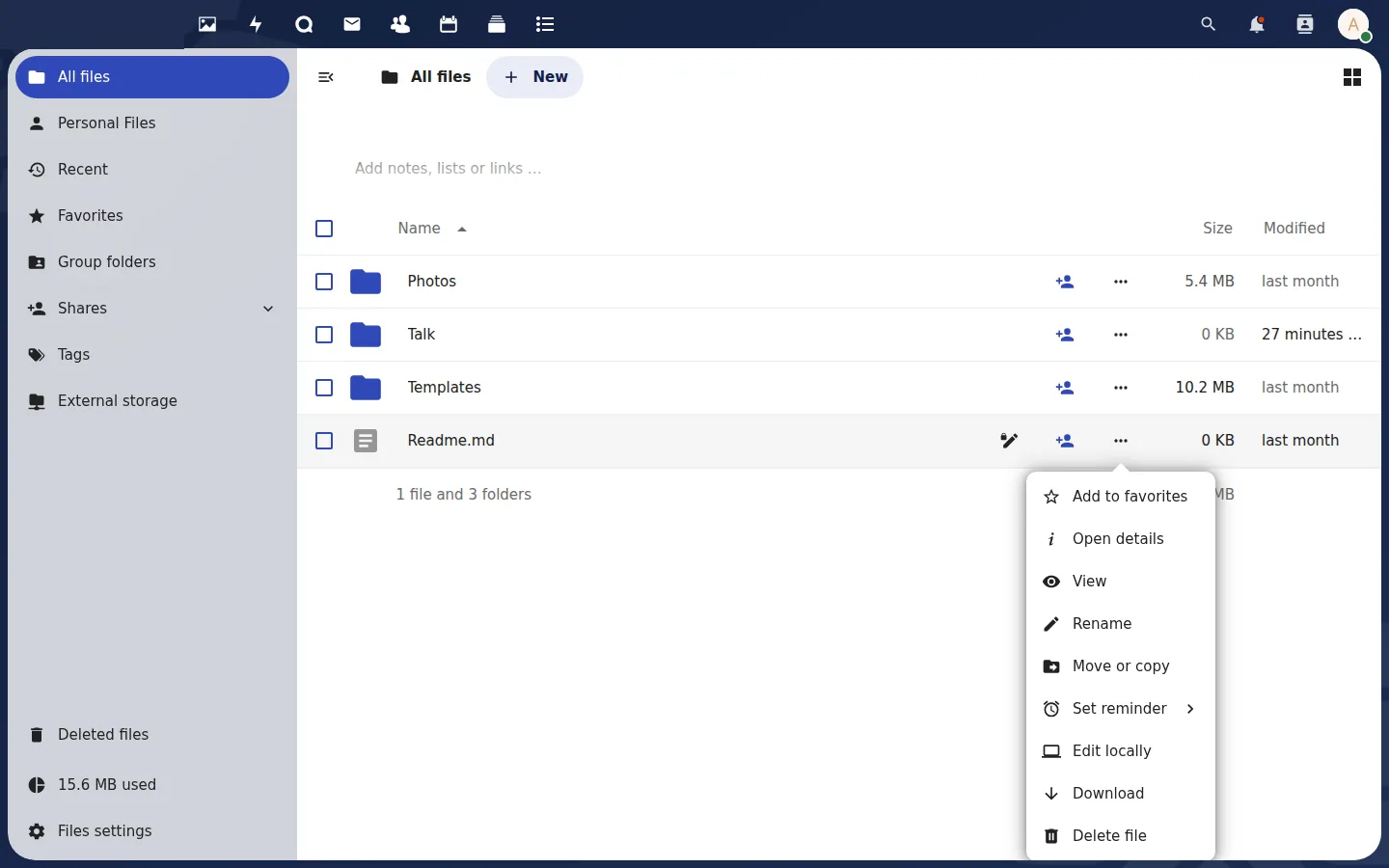 The ⋯ menu on a file: download, move, copy, rename and more.
| Task | How |
|---|---|
| Upload | Files → + New → Upload files, or drag files from your computer onto the page. |
| Upload a folder | Drag the folder onto the page. |
| Download | ⋯ on a file → Download. Select several files → Download gives you one zip file. |
| New folder or document | + New → New folder / New document / New spreadsheet / New presentation. |
| Move, copy, rename | ⋯ menu on the file. |
| Favourites, tags, comments | Open the side panel on the file. |
| Find a file | The search box at the top. |
File sizes. Uploads through the web of up to 1 GiB are tested and work. Larger uploads through the web are not yet confirmed: use a desktop app for very large files. Large uploads are sent in pieces and put together on the server, so keep the browser tab open until the upload bar finishes; the last step can take a minute or more.
3. Versions and deleted files
- Go back to an earlier version: select the file → side panel → Versions → Restore.
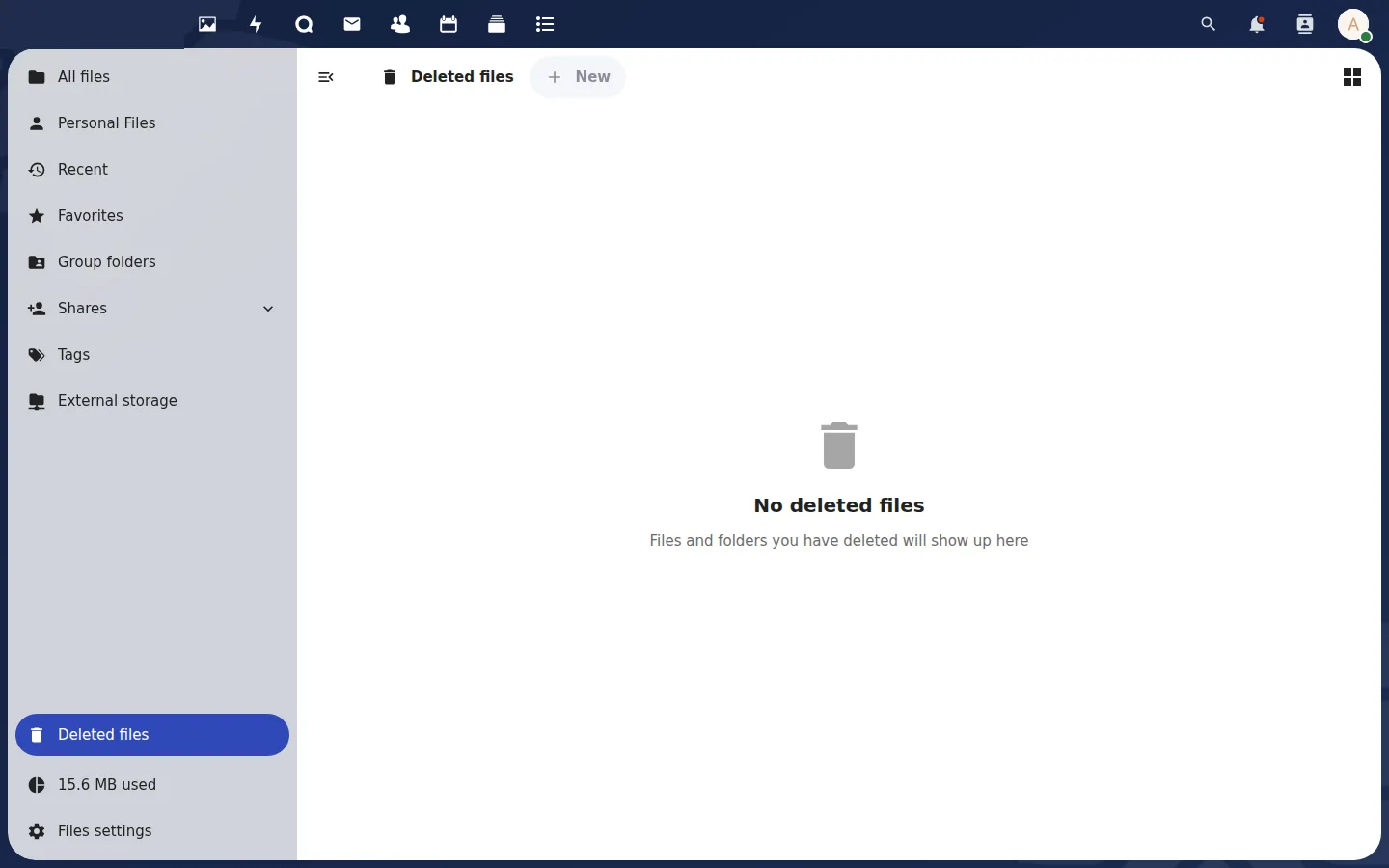
- Get back a deleted file: Deleted files (bottom of the left menu) → Restore.
- How long versions and deleted files are kept is set by your organisation.
- If your organisation uses WORM protection or a legal hold, some deletions are refused and the file stays. That is intended.
4. Share
| Share with | How |
|---|---|
| A colleague or a group | Share icon → type the name → choose what they may do. They find it under Shared with you. |
| Someone outside your organisation | Share icon → Share link (+). A password is required and links expire (30 days at most by default). Send the password by a different channel from the link. |
| Someone on another server | Not possible by default. Ask your administrator. |
5. Office documents
Click a Word, Excel or PowerPoint file, or an OpenDocument file: it opens in the online editor. Others can edit at the same time, and changes are saved automatically. Close it with the X at the top right.
6. Talk: chat and calls
Click Talk in the top bar → + to start a conversation with colleagues → the camera or phone icon to call. Screen sharing is in the call toolbar. Calls work through strict company networks too, because the service can relay them over the normal HTTPS port.
7. Your settings
Avatar (top right) → Personal settings:
- Personal info: name, e-mail, language.
- Security: password, two-factor sign-in, and Devices & sessions, where you can sign out a lost laptop or phone and create an app password.
The look of the portal is set by your organisation and cannot be changed per user.
8. Get the apps
The portal does not show a "get the apps" box. Go straight to https://dl.dmsvault.cloud/metafiles/. See Downloads.