Signing in and the dashboard
Sign in to the MSP console with your named operator account and find your way around the dashboard and navigation.
Signing in
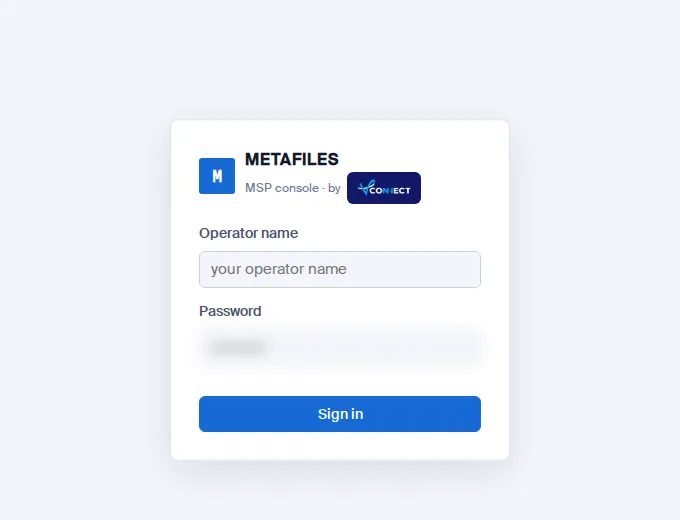
- Open your MSP console address in a browser.
- Type your Operator name and Password, then click Sign in.
- The console opens on the Dashboard. Your operator name is shown at the bottom left, next to Sign out.
A few things to know:
- Named operators. Each person has their own operator account, not a shared admin login, so every action in the audit trail carries a real name.
- Lockout. After 10 failed sign-in attempts, the account is locked.
- Passwords are stored on the server only as a memory-hard hash.
- Only the console is reachable. The console's address serves the console and nothing else; any other path is refused at the edge.
- Sign out ends your session straight away.
Coming: a second sign-in factor for operators, using hardware security keys.
The side navigation
| Group | Item | What it is |
|---|---|---|
| Manage | Dashboard | Totals and a table of every organisation |
| Manage | Organisations | A card for each organisation, plus those deleted in the last 7 days |
| Manage | Tenant requests | Every Add organisation request and its build steps |
| Manage | Site & Fleet | The site's machines, cluster health and machine actions |
| Governance | Cluster Policy | Site-wide defaults that every organisation inherits |
| Governance | Audit overview | A live check of every organisation's audit trail |
| Settings | Branding | The default branding for every organisation |
| Settings | Email (SMTP) | The mail server every portal uses to send mail |
The dashboard
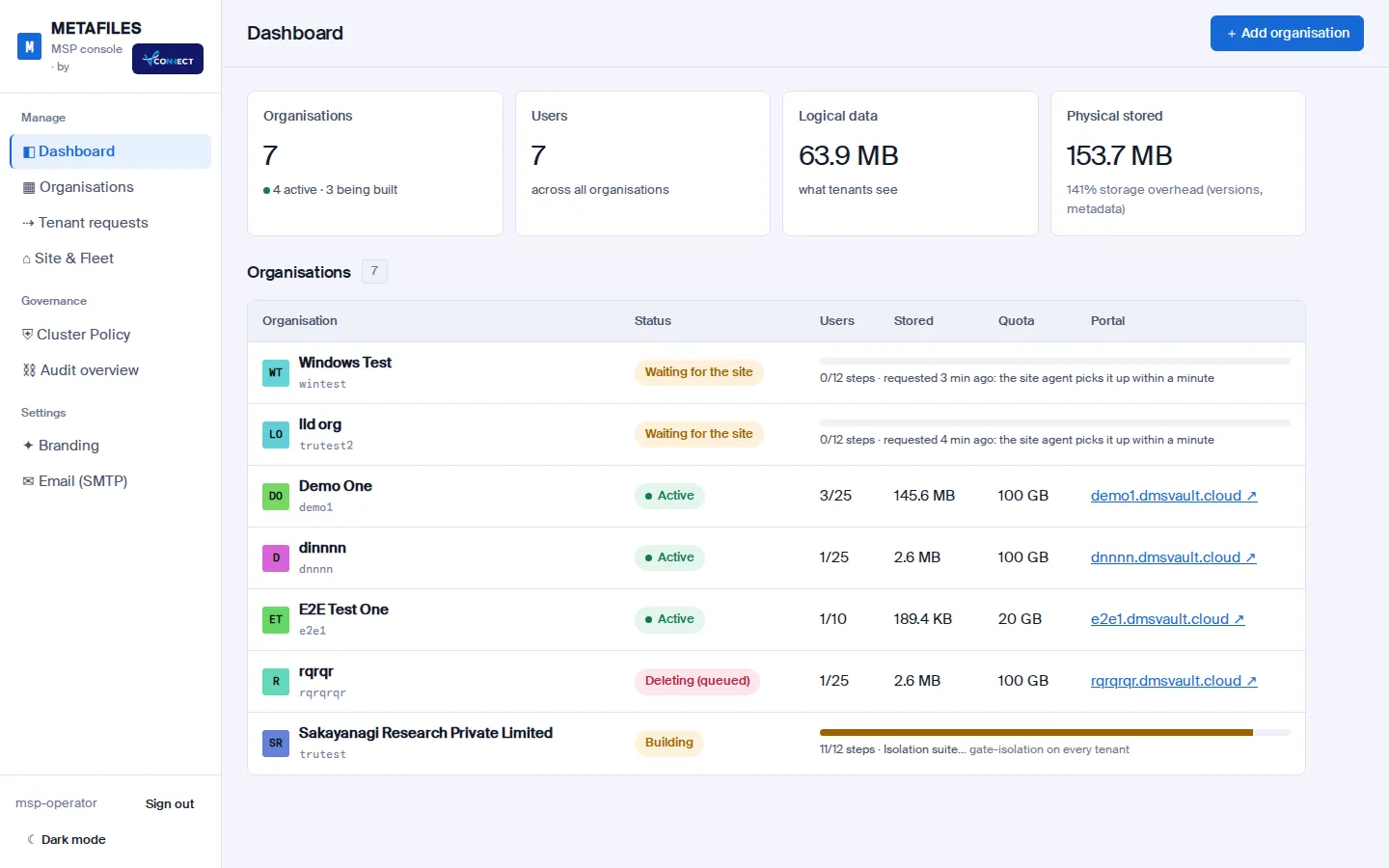 The dashboard gives you the whole site at a glance.
| Element | Meaning |
|---|---|
| Organisations | How many organisations you have, with how many are active and how many are being built. |
| Users | Users across all organisations, as each portal reports them. |
| Logical data | What your customers see: the total size of their files. |
| Physical stored | What the engine actually stores after deduplication and compression, plus versions and metadata. |
| Organisations table | One row per organisation: name and ID, status, users (used and allowed), stored data, quota and a link to its portal. A row that is still being built shows its step count and a progress bar. |
| + Add organisation | Starts a new organisation. See Organisations. |
Click a row to open that organisation's page.
Dark mode and phones
Click Dark mode at the bottom left to switch theme, and Light mode to switch back. Light is the default.
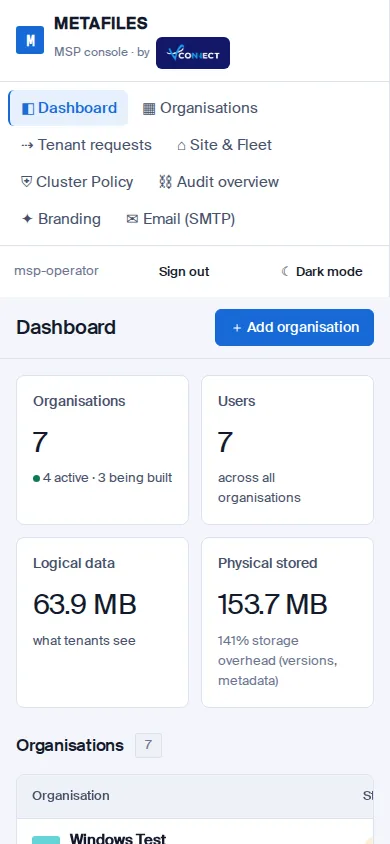
The console works at phone width: every screen fits without sideways scrolling, so you can check on your organisations from anywhere.