
End-user guide
How to use METAFILES - the web portal, and the apps for Windows, Windows 7, macOS, Linux and Android.
METAFILES gives you your organisation's files wherever you work: in a web browser, and in apps for your computer and phone. This guide shows you how to sign in, find your way around the web portal, install the right app and get the most out of it.
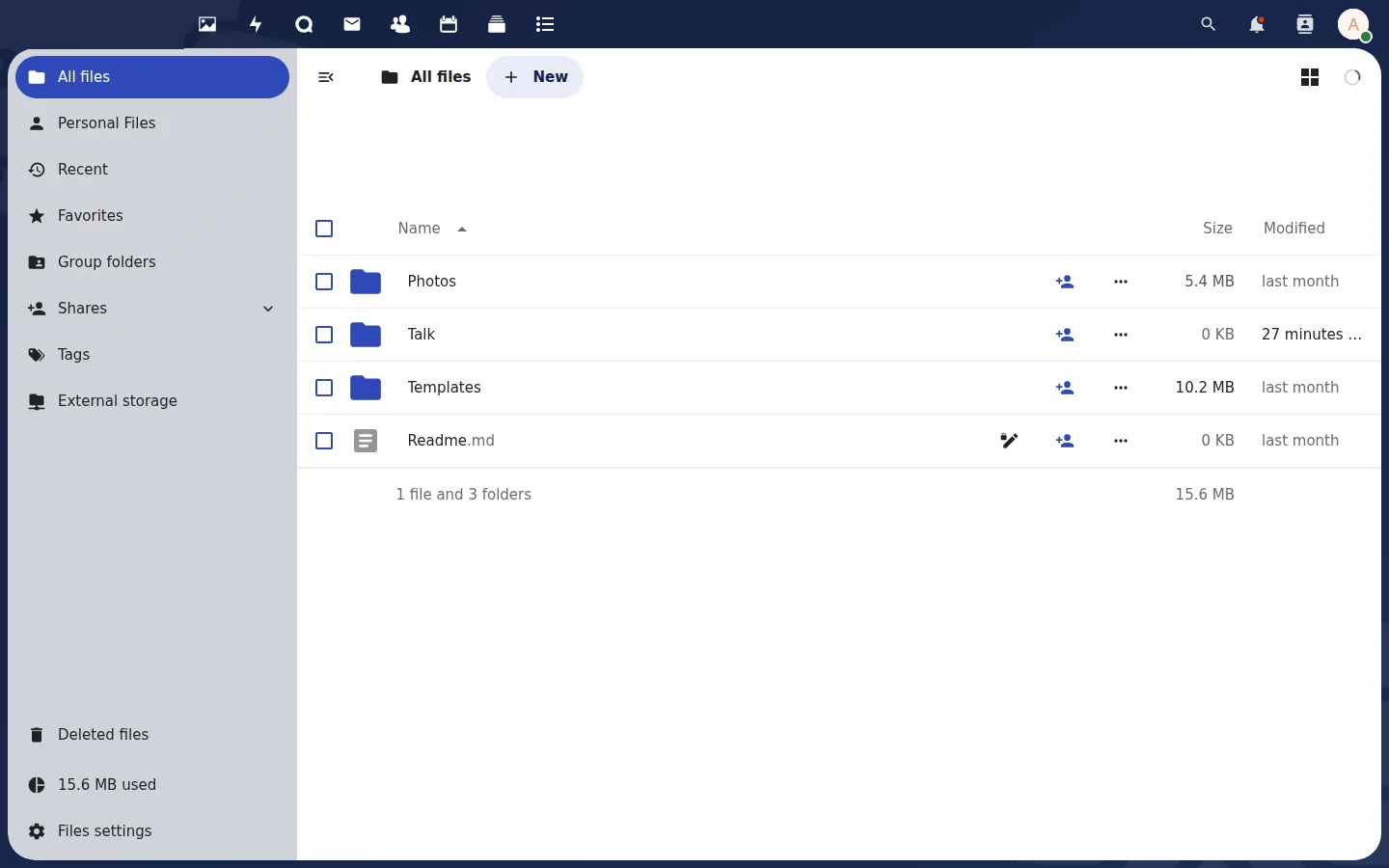 The web portal: your files, shares and recent activity in one place.
The short version
- Your administrator gives you your server address (for example
https://acme.dmsvault.cloud), your user name and a first password. - Sign in to the web portal with them. See The web portal.
- Install the app for your device from https://dl.dmsvault.cloud/metafiles/ and sign in with the same server address. The app opens your browser for the sign-in, so two-factor sign-in works without extra steps.
Pages in this guide
| Page | What it covers |
|---|---|
| The web portal | Sign in, upload and download, share, edit Office documents, Talk, versions and deleted files. |
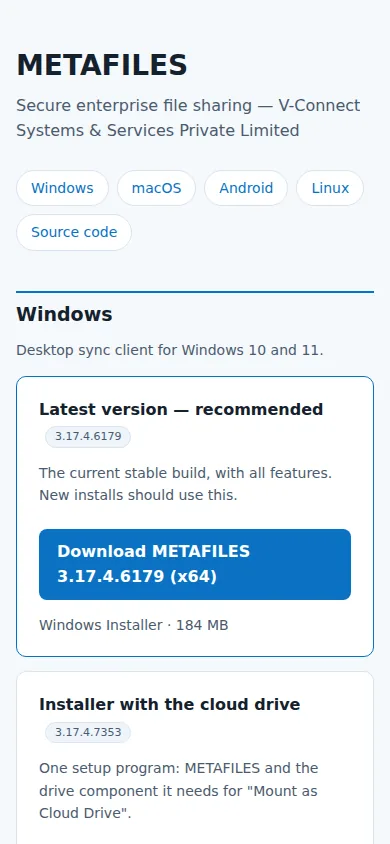
| Downloads | Which app to pick, checking a download, how updates work. |
| METAFILES for Windows | Windows 10 and 11: install, sign in, the synced folder, on-demand files, drive letter, Send to METAFILES. |
| The cloud drive | A Windows drive that streams straight to the server, for copying more than your free disk space. |
| METAFILES for Windows 7 | The separate Windows 7 edition and the Windows updates it needs. |
| METAFILES for macOS | Apple Silicon Macs: install, Finder integration, Add and Send to METAFILES. |
| METAFILES for Linux | The .deb package and the AppImage. |
| METAFILES for Android | Installing the app from the download page and signing in. |
| Known issues | Current limits and their workarounds. |
Note: There is no iPhone or iPad app. On those devices, use the web portal in the browser.
Questions not covered here? Try the FAQ or ask your administrator.
The web portalSign in at your organisation's address, then upload, download, share, edit Office documents and call colleagues from your browser.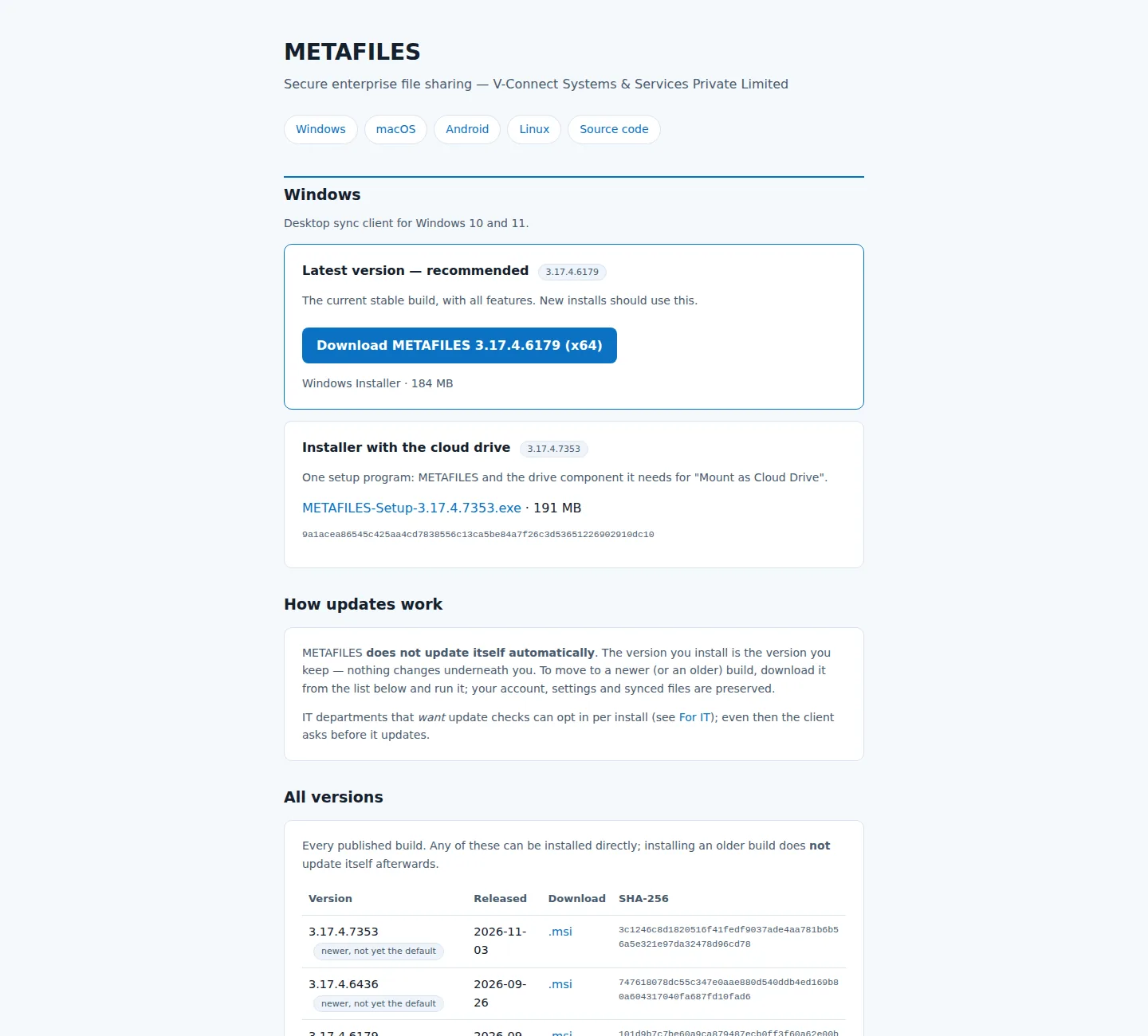 DownloadsEvery METAFILES app comes from dl.dmsvault.cloud/metafiles/, with a SHA-256 for each file so you can check it before installing.
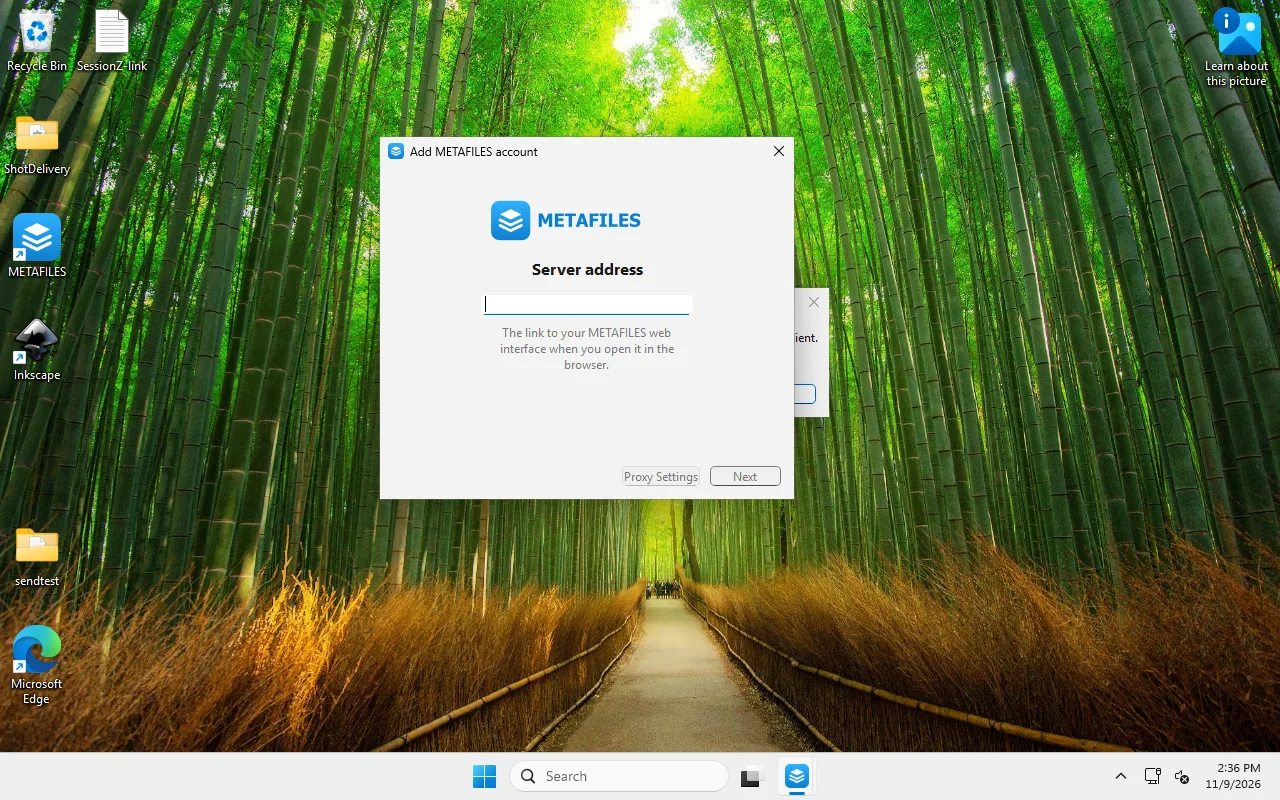 METAFILES for WindowsInstall METAFILES on Windows 10 or 11, sign in through your browser, and get a synced folder, a drive letter and Send to METAFILES in Explorer.
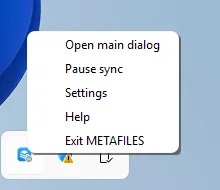 The cloud driveA Windows drive whose contents live only on the server, so you can copy more data than your PC has free space.METAFILES for Windows 7Windows 7 PCs use a separate METAFILES edition that needs a few Windows updates and .NET Framework 4; here is what to install and what works.METAFILES for macOSInstall the notarized METAFILES app on an Apple Silicon Mac, switch on its Finder extensions, and sign in with your organisation's address.METAFILES for LinuxInstall the .deb or run the AppImage, sign in with your organisation's address, and get synced folders plus Add and Send to METAFILES in your file manager.
 METAFILES for AndroidDownload the METAFILES app from the download page on an Android 9 or newer phone, check its signature and sign in.Known issuesCurrent limits in the METAFILES apps and web portal that you may run into, and how to work around them.