
Sharing
Share with colleagues and through password-protected, expiring public links; sharing with other servers is off by default.
METAFILES lets your users share files and folders with colleagues, and with people outside through public links. Out of the box the safe options are switched on: links need a password and expire. This page lists the defaults, where to change them, and what your MSP controls.
1. Default settings
| Setting | Default for a new organisation |
|---|---|
| Public links | Allowed |
| Password on public links | Required |
| Link expiry | Enforced, 30 days at most |
| Upload through a public link (file drop) | Off |
| Re-sharing by the recipient | On |
| Sharing with other servers (federation) | Off |
| Share by e-mail | Off until your MSP has set up outgoing mail |
These are the defaults. Your MSP can change them for your organisation, and an organisation moved over from older data may have kept its earlier values, so check your own portal in Administration settings → Sharing.
2. Changing the settings
Open Administration settings → Sharing. You can change these values as a full administrator, under the two-way rule described in What your MSP controls:
- Making sharing stricter (for example a shorter expiry) normally sticks, unless your MSP locked the setting.
- If your MSP locked a setting, or changes it after you, your MSP's value comes back.
Your MSP can also limit users to sharing only with members of their own groups.
3. Share with colleagues
- In Files, click the share icon next to a file or folder (or open the side panel → Sharing).
- Type a colleague's or a group's name and pick them.
- Choose what they may do: view, edit, share again or delete.
Recipients find the item under Files → Shared with you.
4. Share with someone outside
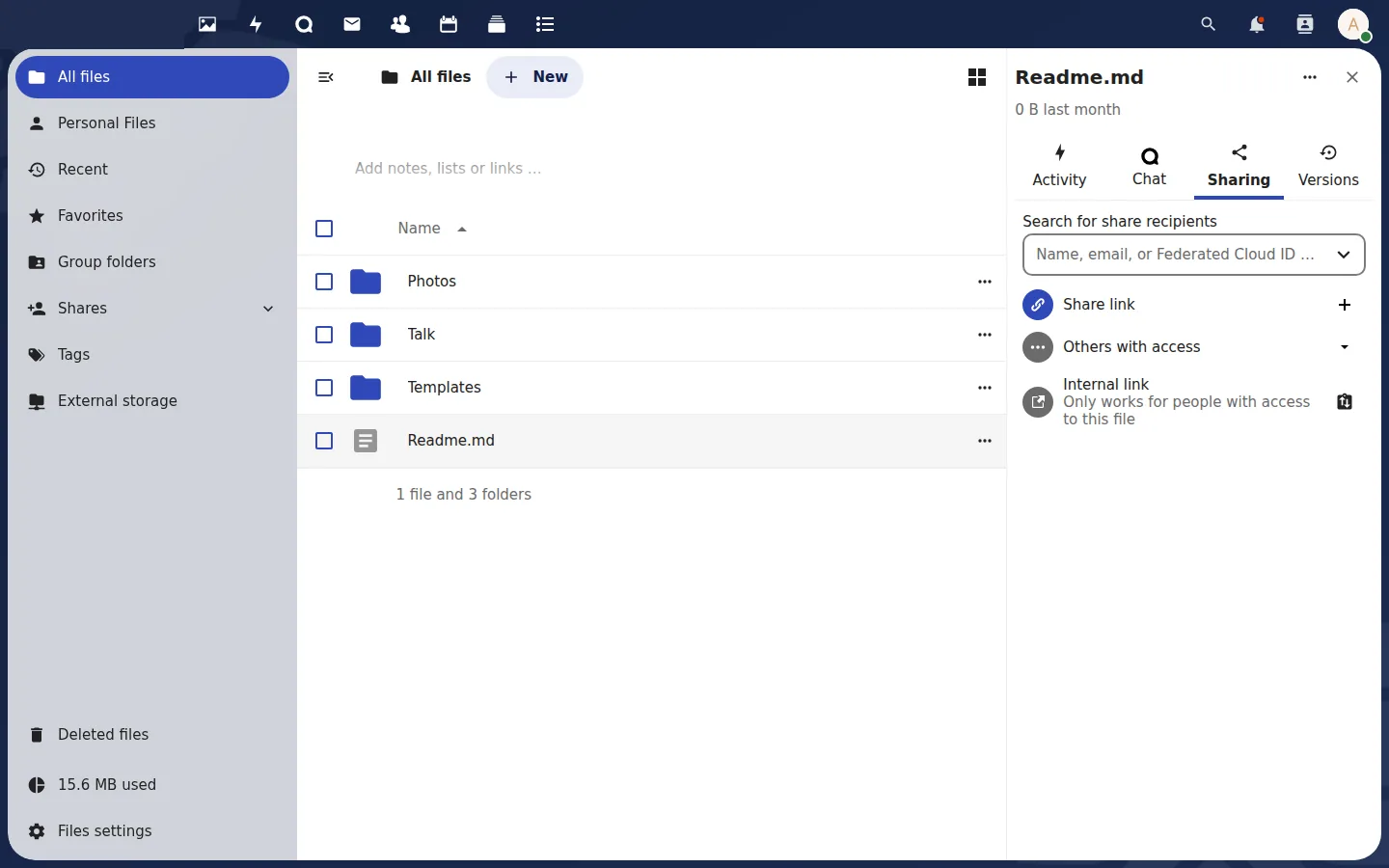 The sharing panel: people inside your organisation, and public links.
- Side panel → Sharing → Share link (+).
- Set a password (required by default). Send it to the recipient by a different channel from the link, for example by phone or text message.
- An expiry date is set automatically (30 days at most by default).
- Optional: Hide download, Note to recipient.
Windows users can create the same links from Explorer: right-click a file inside the METAFILES folder → METAFILES → Share options.
If your MSP switches public links off, links that already exist keep working; removing them is a separate step your MSP takes.
If a link page is very slow (about 25 seconds), someone probably typed too many wrong passwords from that network address. The protection slows that address down for a while; your MSP can reset it.
5. Sharing with other servers
Sharing with other servers ("federated" sharing) is off, and only your MSP can switch it on. This keeps every organisation separate from the others. Changing it in your portal does not stick; ask your MSP.
6. Share by e-mail
Sending a share by e-mail needs outgoing mail for the service. Whether it is switched on is your MSP's choice.
7. Sharing from the desktop apps
The METAFILES apps for Windows, macOS and Linux have Send to METAFILES with an option to share it with someone afterwards: when the upload finishes, the sharing panel opens on the file. When several files are sent, the app shares the destination folder and asks first, telling you how many items are already in it. See METAFILES for Windows.