
Retention, versions and files
Choose how long old versions and deleted files are kept, understand WORM and legal hold, and know your quota and upload limits.
METAFILES keeps earlier versions of files and keeps deleted files in a trash, so mistakes can be undone. You decide how long both are kept, within limits your MSP sets. For stronger protection, your MSP can switch on WORM or a legal hold, which stop files being deleted at all.
1. What is kept, and who decides
| Protection | What it keeps | Who sets it |
|---|---|---|
| File versions | Earlier versions of a file, which users can restore | You, within your MSP's limits |
| Deleted files (trash) | Deleted items, until they are removed for good | You, within your MSP's limits |
| Restore points | Snapshots of your whole organisation's storage | Your MSP |
| WORM | Files cannot be deleted or changed before their retention date | Your MSP |
| Legal hold | Nothing can be deleted, whatever its age | Your MSP |
2. Set retention
- Avatar → Administration settings → Retention.
- Keep earlier versions of a file for a number of days (0 to 36500).
- Keep deleted files for a number of days (0 to 36500).
0means "let the system manage it": older copies are removed only when space is needed.- Click save. The page says "Requested" and shows both values. The platform checks your request and applies it within a few minutes; the page shows what is in force and what you asked for.
Rules:
- Your values must be within your MSP's minimum and maximum. A value outside them is refused.
- Within those limits, whoever changed the value last (you or your MSP) wins.
- A shorter retention period takes effect after 24 hours, so a mistake can still be undone.
- Old versions and deleted files are cleared by a scheduled job, a few minutes after a change takes effect.
Versions and the trash cannot be switched off.
3. Restoring files
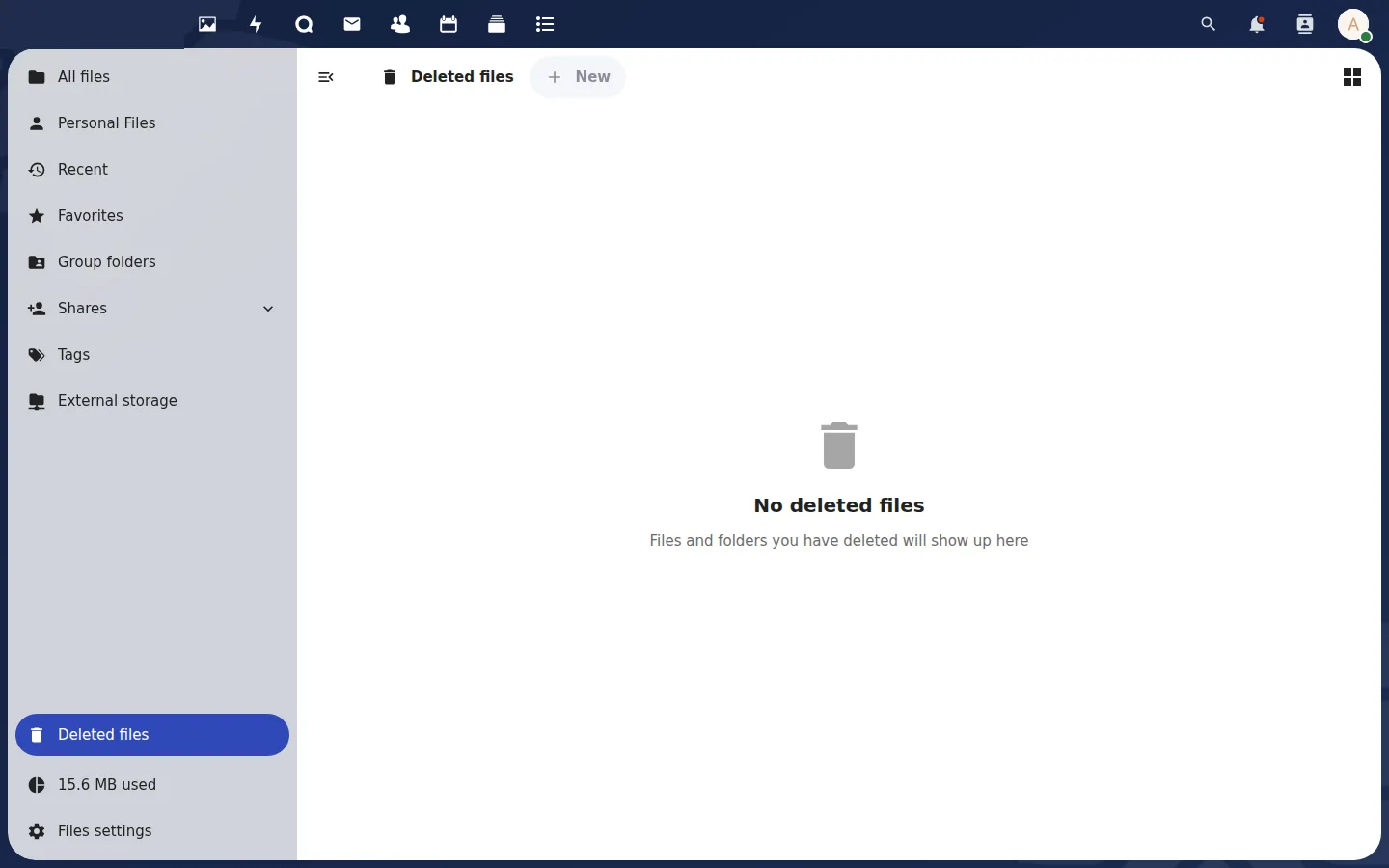 Deleted files: restore an item or delete it for good.
| Task | How |
|---|---|
| Restore an earlier version | Files → select the file → side panel → Versions → Restore |
| Restore a deleted file | Files → Deleted files (bottom left) → Restore |
| Delete for good | Deleted files → Delete permanently (refused for protected files under WORM or a legal hold) |
To put a whole folder or the whole organisation back to an earlier point in time, ask your MSP: they restore from a restore point.
4. WORM and legal hold
WORM ("write once, read many") means files cannot be deleted or changed before their retention date. Only your MSP can switch it on, and only for an organisation that was created WORM-capable; an existing organisation cannot be moved into WORM later. Ask your MSP before you create the organisation if you need it.
While WORM is on, you and your users will notice:
- Deleting a file that is still within its retention period fails, and the file stays.
- Saving over a file works, but the old content is kept as a locked version.
- Old versions and deleted files are no longer cleared.
- Deleting a user is refused. Disable the user instead.
A legal hold works the same way for every file, whatever its age. Only your MSP can release it, and an organisation under legal hold cannot be deleted.
5. File locking
If your MSP switches file locking on, users can lock a file so others cannot edit it: Files → ⋯ → Lock file. Files open in the online office editor are locked while they are being edited. The Windows app also offers Lock file in its Explorer menu.
6. Quota and storage
- Organisation quota: set by your MSP in your plan. Over the quota, uploads are refused; reading, deleting and restoring always work.
- Per-user quota: set by you in Accounts. See Users and groups.
- Encryption: all data is encrypted at rest. This cannot be switched off. See Storage.
7. Upload sizes to tell your users
| Route | What to expect |
|---|---|
| Web portal | Files up to 1 GiB are tested and work. Large uploads are sent in pieces and put together on the server, so keep the browser tab open until the upload finishes. |
| Web portal, over 1 GiB | Not yet confirmed. Use a desktop app for very large files. |
| METAFILES desktop apps | Large files are sent in pieces of at most 16 MiB. |
Upload speed depends on your users' internet connection.