
Branding and policy
How console changes take effect, and how to set each organisation's plan, policy, apps and white-label branding, plus the site-wide Cluster Policy, branding and email.
Each organisation page sets that organisation's plan, security and sharing policy, retention, apps and branding. The Cluster Policy and Branding pages set the site-wide defaults that every organisation inherits. This page explains all of them, starting with how a change takes effect.
How a change takes effect: tiers and the undo window
Every control has a tier, set by the engine, not by the browser.
| Tier | How it takes effect | Examples |
|---|---|---|
| T1 | At once | Tightening security, raising seats or quota, turning an app on, adding a user, making a user admin, branding text |
| T2 | As a pending change with an undo window. It shows in a "Scheduled changes" banner and under Advanced > Pending changes, where any operator can cancel it. | Read-only, suspend and resume; lowering quota or seats below current use; turning an app off; loosening security or sharing; turning two-factor on or off; arming WORM; turning legal hold on; disabling or deleting a user; keeping fewer restore points |
| T2, long window | As T2, with a longer undo window | Changes that reduce history |
| T3 | Not a console action. Done as a separate, approved step. | Purging retained data, removing locked storage |
The length of the undo window is set for your site. The banner always shows the actual time left.
Who wins: you or the customer's admin?
Customer admins have full control of their own portal, and you can override, lock or revert what they do. If a customer admin changes a setting you enforce, the services on each app server put your value back on their next pass, every few minutes. Branding is the exception: theming changes the customer makes stay until you click Re-apply branding. Your customers can read What your MSP controls to see how this works from their side.
These rules are enforced on the server: by the engine's S3 gateway, by the edge (for suspend and read-only) and by the enforcement services on both app servers.
Plan and usage
| Control | Behaviour |
|---|---|
| Seats allowed | How many user accounts the organisation may have; disabled users count. Raising is T1; lowering below current use is T2. Zero is refused. |
| Storage quota (GB) | At the limit uploads stop; reading and deleting always work. Raising is T1; lowering is T2. |
| Used (logical) and Used (physical) | What users see, against what the engine stores after deduplication and compression. |
| Dedup | The ratio between the two. |
| Last sign-in | The newest sign-in the portal reported. |
Policy and controls
| Switch or number | What it does |
|---|---|
| WORM (immutable) | Makes retained files impossible to change or delete. Only for organisations created as WORM-capable; otherwise the switch is disabled and says why. Arming is a console action; turning it off is a separate, approved step. |
| Require two-factor | Every user must use a second factor to sign in to the portal. |
| Require two-factor for tenant admins | Only the organisation's admins must. Off by default for new organisations. |
| External sharing | Public links to people outside the organisation. |
| Ransomware protection | Stops sudden mass changes at the engine and holds them for you to release. See Data protection. |
| File locking | Stops two people from overwriting each other's work. |
| Password-protect share links | Share links must have a password. |
| Approve new devices | Each new desktop or mobile client waits for an admin's approval. |
| File versions kept (days) | How long versions are kept. 0 means automatic: kept until space is needed. |
| Deleted files kept (days) | How long deleted files stay in the trash. Default 30. |
| Engine restore points | How many whole-workspace snapshots the engine keeps. 0 means the default of 500. |
Apps and features
Nine switches turn apps on or off for the organisation. Turning one on installs it into the portal automatically.
| App | Usual default |
|---|---|
| Collaborative Office (Word, Excel and PowerPoint in the browser) | on |
| Chat, audio and video (Talk) | on |
| Calendar | on |
| Contacts | on |
| Mail (web mail client) | off |
| Kanban boards | on |
| Forms and surveys | on |
| Team folders | on |
| Connected storage (mount S3, SMB or FTP as folders) | off |
Branding an organisation
The Branding (white-label) block on the organisation page sets the portal's name, slogan, primary colour and brand link, and four images: the sign-in logo, the header logo, the browser icon and the sign-in background. Images can be PNG, JPEG or WebP up to 2 MB; SVG is not accepted. Images can be uploaded once the build has finished.
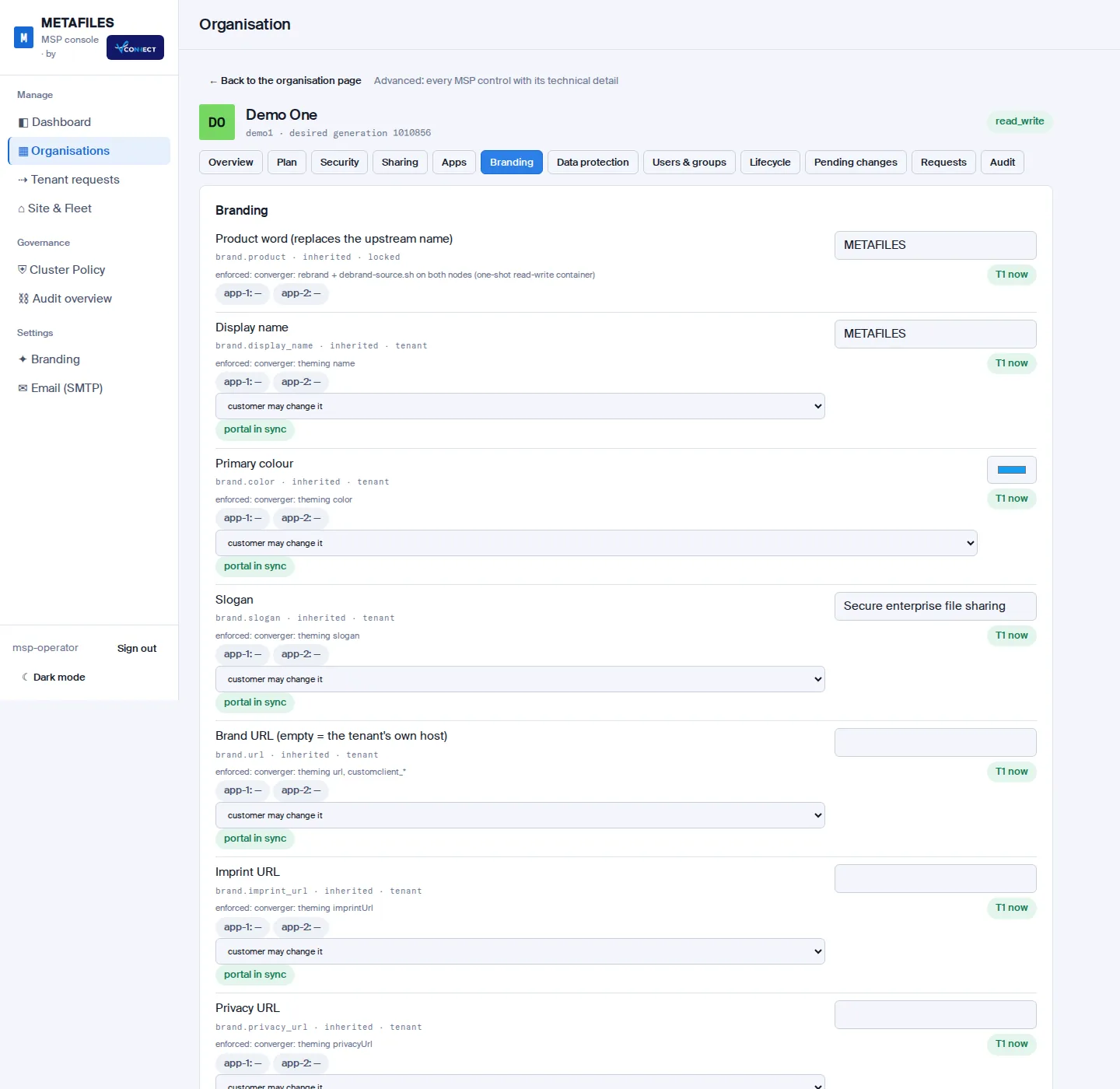
METAFILES is the product name throughout; your customers see your branding and theirs, never an upstream product name. The customer's admin can still adjust theming in their portal, and Re-apply branding on the portal card puts yours back.
Site branding
Settings > Branding sets the defaults every organisation gets unless its own page sets something else: the product word, display name, slogan, primary colour, brand link, imprint and privacy links, and the client download link. If the download link is empty, portals point users to https://dl.dmsvault.cloud/metafiles/. Saving applies the change to every organisation that uses the default.
Cluster Policy
Governance > Cluster Policy holds the site defaults: two-factor for all users and for tenant admins, public share links, passwords on share links, the longest share-link expiry, file locking, versions and deleted files kept, engine restore points, minimum password length (10), account lock after failed sign-ins (10), session lifetime (24 hours), default seats (25) and default storage quota (100 GB).
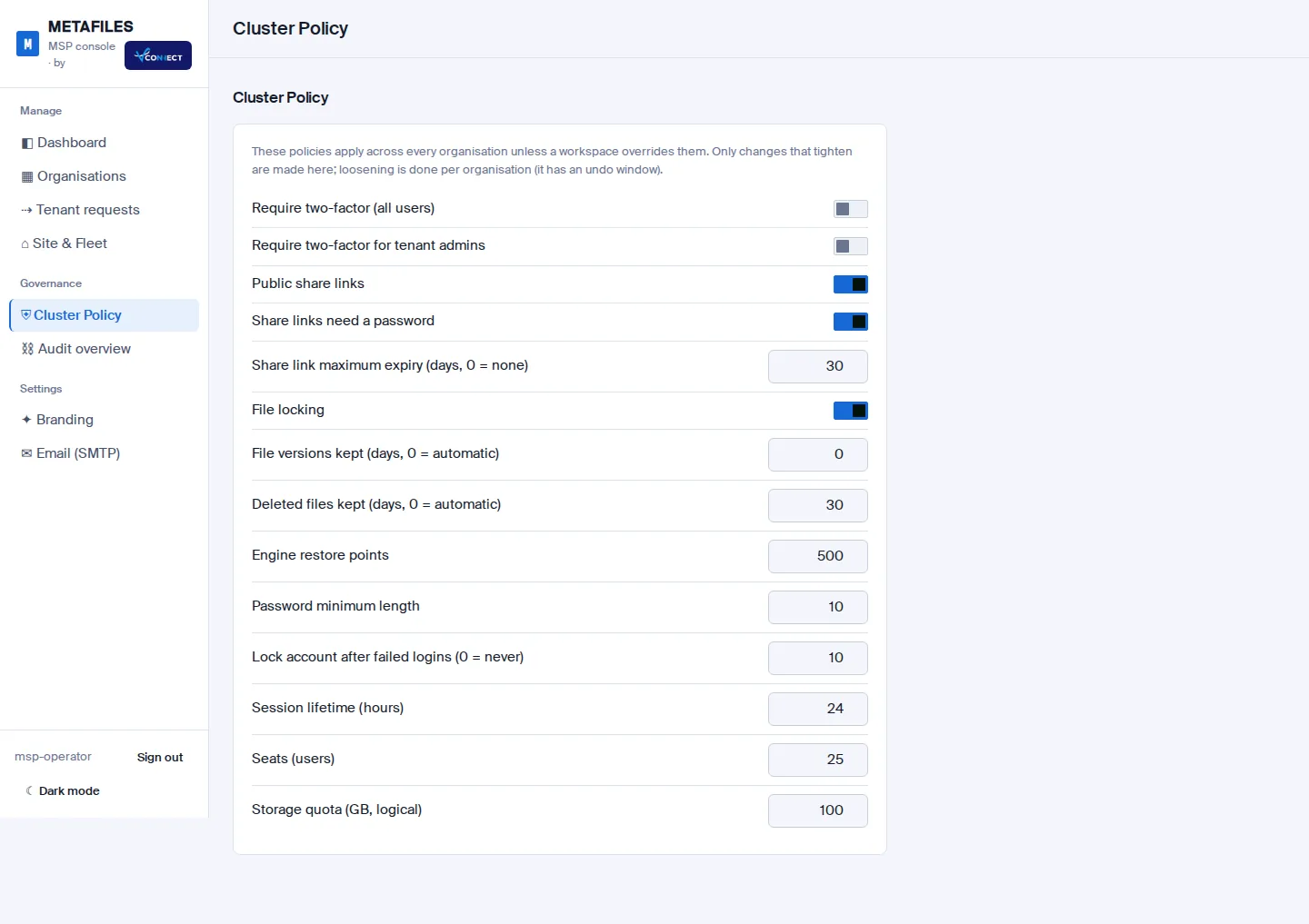
Only tightening is allowed here. To loosen a setting, do it per organisation, where it goes through the undo window. For example, lowering the minimum password length from 10 to 8 on this page is refused.
Email (SMTP)
Settings > Email (SMTP) sets the one outgoing mail server that every portal uses for invitations, alerts and password mails.
| Field | Notes |
|---|---|
| Host and Port | Your mail relay, usually on port 25, 465 or 587. |
| Security | Automatic (by port), SSL/TLS, STARTTLS or none. |
| Username and Password | The password is kept on the server only and never sent back to the browser; the field stays empty after saving. |
| From | The sender address. |
Save changes applies the settings; the portals pick them up within a minute. Send test email sends a test message to an address you type and shows the relay's own answer, so you can see straight away whether it worked. Clearing the fields and saving removes the relay; the portals then send no mail. Until a relay is set, hand out passwords with Reset & show.