
Site and fleet
Watch every machine and service of your site in Site & Fleet, ask for machine actions that a person approves, and add a new machine.
Site & Fleet shows what the control plane sees on every machine and cluster service of your site, and lets operators ask for machine actions: a health check, a service restart, maintenance, moving a site address, an engine failover, a reboot, and adding or retiring a machine. Every action is planned by the control plane and approved by a person before it runs.
What you see
The header shows when the control plane last observed the site and what it is doing now, for example building an organisation. The site is observed every 10 minutes and after every action.
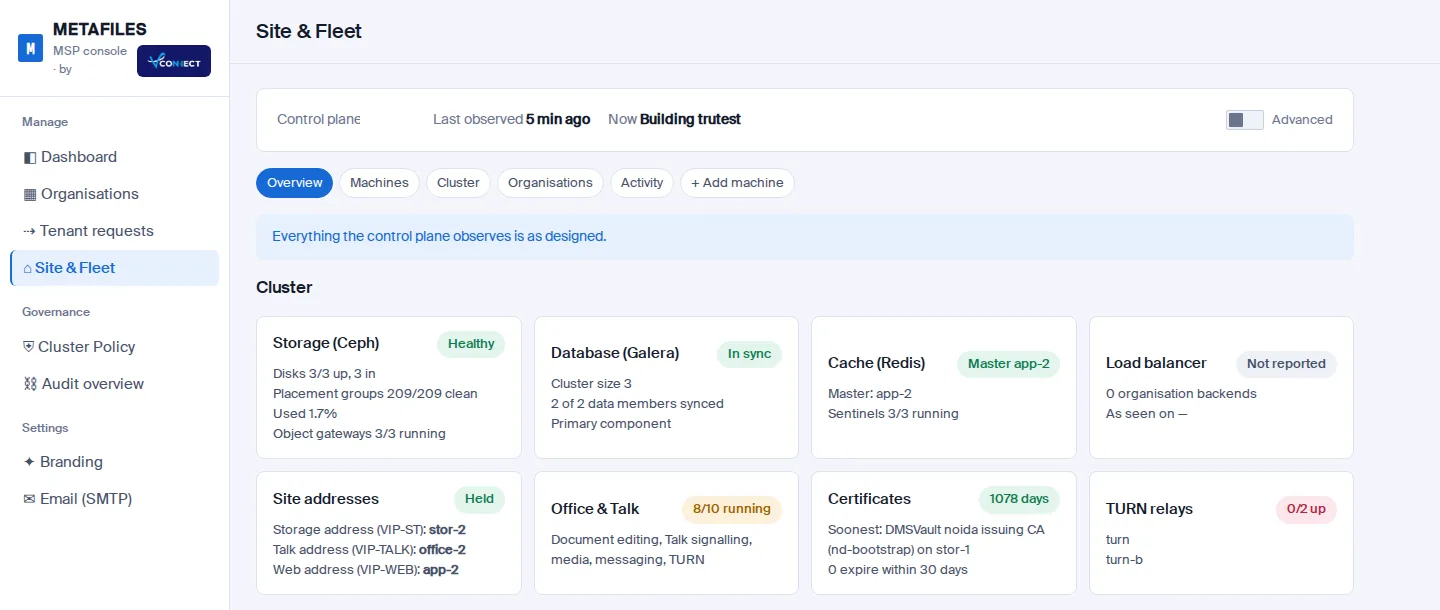
| Tab | What it shows |
|---|---|
| Overview | A banner that says either "Needs attention" (a machine down or degraded, storage not healthy, a certificate expiring within 30 days, a plan waiting for approval) or that everything is as designed. Below it, the cluster panels and the machine list. |
| Machines | One row per machine: role, status (up, degraded or down), CPU, memory and disk bars, load, and badges such as which machine holds a site address, which runs the active engine, and which is in maintenance or drained. Spare machines are listed below. |
| Machine page | Click a machine for its details: actions, each service with its state and restart count (and Restart where allowed), the portals on that machine, disks, network, errors from the last hour with secrets removed, and the last drift check. |
| Cluster | Panels for storage, database, cache, load balancer, site addresses, Office and Talk, certificates and call relays. Each panel opens a detail table. |
| Organisations | Which organisation runs where: the state of its portal on each app server and in the load balancer. |
| Activity | Open action cards, then the fleet audit log: who asked for what, when, and the result of each step. |
Switch on Advanced to see more detail, such as versions, checks and differences found by the daily drift check.
Asking for a machine action
Every action follows the same path:
- You ask for it in the console. The engine records and audits the request.
- The control plane plans it from its latest observation, or refuses it in plain words.
- A person approves that exact plan. The approval is pinned to the plan, so nothing else can run in its place.
- The control plane carries it out from the signed, verified release, then checks the machine again and records the result.
The engine itself never touches a machine.
Approval tiers
| Tier | Approval | Examples |
|---|---|---|
| T1 | One operator asks and approves | Health check; restarting a portal, Office, Talk, monitoring or relay service; draining an app or office server; pre-flight checks for a new machine |
| T2 | A second, different operator approves | Restarting core database, cache, load-balancer or storage-gateway services; moving a site address; making the other engine active; draining a storage server; onboarding a machine |
| T3 | As T2, and the machine's name is typed both when asking and when approving | Rebooting a machine (only in maintenance, never the active engine or a site-address holder); retiring a machine |
Single-operator mode. A site with only one operator can allow that operator to approve T2 actions. T3 actions always need a second operator.
Refusals. An action that is not possible on your site is refused with the reason and changes nothing. For example, retiring a machine is refused if it would take a role below its minimum (two app servers, two office servers, three storage servers). An action cut short is reported as interrupted, and you can ask for it again.
Adding a machine
Click + Add machine in Site & Fleet. Today a machine joins in a few guided steps:
- Choose the role and a name. Roles are app server, storage, Office & Talk, or spare (held for later). The minimum size for each role is shown.
- Choose where it comes from. Today: an existing machine that you prepared yourself.
- Give its address on the site's private management network, and its SSH port. The machine must already be on that network.
- Paste the one-line bootstrap once on the machine as an administrator. It creates a deploy user that accepts only the control plane's public key, only from the control plane's address, with no forwarding. It holds no secret. It prints the machine's SSH host-key fingerprint.
- Type the fingerprint into the console. Only a machine showing exactly that host key is accepted; nothing is trusted on first contact.
- Run the pre-flight checks. Read-only: is it reachable, is the operating system supported (Ubuntu 24.04 or 22.04), are CPU, memory and disk enough for the role, is the clock synchronised, are the needed ports free, is there no conflicting service, is sudo present.
- Onboard (T2). Today a machine joins as a spare from start to finish. Joining as an app, office or storage server is refused with the reason, and onboarding as a spare is offered instead.
Minimum sizes by role:
| Role | CPUs | Memory | Disk |
|---|---|---|---|
| App server | 8 | 30 GB | 190 GB |
| Office & Talk | 8 | 15 GB | 90 GB |
| Storage | 8 | 30 GB | 90 GB |
| Spare | 2 | 4 GB | 40 GB |
Coming: joining a machine directly as an app, office or storage server, and creating machines through Proxmox VE, libvirt/KVM, OpenStack and Amazon EC2. These options are shown in the console as "Coming".
Coming: adding a machine with one pasted command. In the console you pick a role and a name and click Make the enrollment command. The command is single-use, expires after 30 minutes and is stored only as a hash. Pasted on the new machine, it downloads the enrollment script over HTTPS, checks its checksum, checks every prerequisite and prints PASS or FAIL for each, and changes nothing until all of them pass. The machine then reports its host key and size, and appears as "Enrolled, ready to onboard", with nothing to type. Pre-flight and onboarding then run as above, with the same approvals.
For the planned one-command enrollment, the machine will need: Ubuntu 24.04 or 22.04 (64-bit) with python3 and an SSH server; the size above for its role; an administrator who can use sudo; outbound HTTPS (nothing inbound from the internet); a synchronised clock; the role's ports free; no conflicting service such as another web server, database or container runtime; an ed25519 SSH host key; and for storage, an extra empty disk of 50 GB or more, which is wiped when it joins.
Scaling the site
Some capacity is managed automatically today, and some needs a person. See Scaling and high availability for what happens automatically, what is a guided step and what is coming.