
Users and access
Manage an organisation's users from the MSP console, hand out passwords safely with Reset & show, and decide who must use two-factor sign-in.
The Users table
At the bottom of each organisation page you find Users N/seats and + Add user. The users are the portal's own accounts: users the customer's admin creates in the portal also appear here.
| Column or button | Meaning |
|---|---|
| User, Name | The portal account. |
| Role | Tenant admin or user. |
| Quota | The user's own storage quota. |
| Sign-in password | Reset & show (see below). The console never shows a current password. |
| Make admin / Make user | Adds the user to, or removes them from, the organisation's admins. Takes effect at once. |
| Disable / Enable | A disabled user cannot sign in. Disabling waits for the undo window. Disabled users still count against seats. |
| Delete | Disables the user first and removes them after the undo window. Refused while WORM is armed or a legal hold is on; disable instead. |
+ Add user creates the account in the portal and shows its generated password once.
Reset & show password
METAFILES never stores passwords in a way that could be shown again, so that no console page or answer can ever leak a usable credential. Instead, Reset & show makes a new one:
- Click Reset & show next to a user, or Reset & show password next to the portal admin on the portal card, and confirm.
- The engine makes a strong new password and shows it to you once. Copy it and hand it over privately.
- The new password travels to the portal only inside the queued command. It is hidden in every console view and in the audit trail.
- It replaces the old password. There is no way to see the previous one.
Every new organisation gets a first admin called <id>-admin, for example acme-admin. Use Reset & show password on the portal card to get its password and give it to your customer.
Organisation admins
Your customer's admins are full administrators of their own portal: they see every administration page and can manage users, groups, sharing, theming and apps. If they change a setting you enforce from the console, your value is put back automatically on the next pass. See What your MSP controls for the customer's view.
Two-factor sign-in
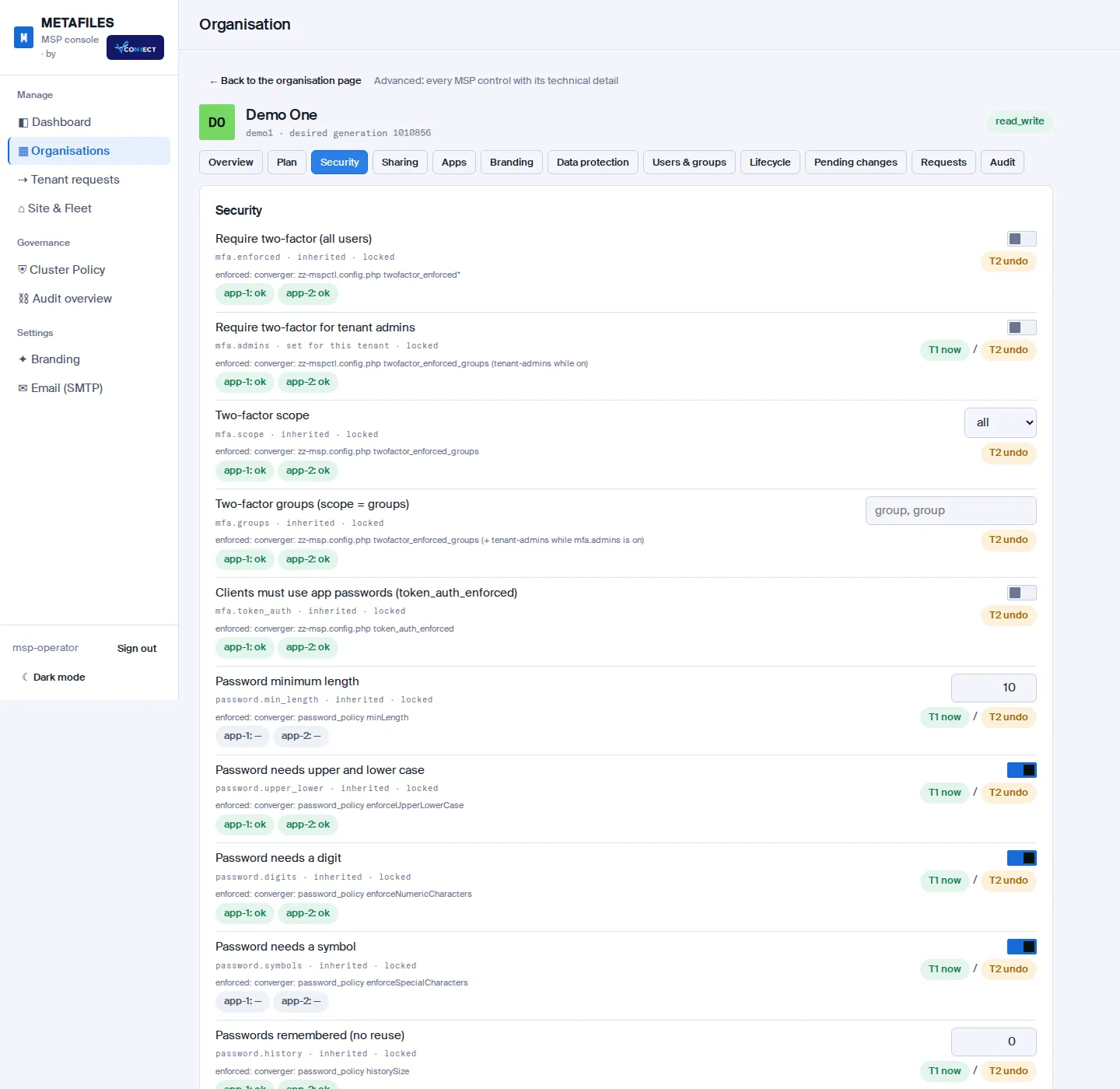
Two switches on the organisation page decide who must use a second factor at portal sign-in:
| Switch | Who must use a second factor |
|---|---|
| Require two-factor | Every user of that organisation |
| Require two-factor for tenant admins | Only the organisation's admins |
Both also exist in Cluster Policy as site defaults, where they can only be tightened. "Require two-factor for tenant admins" is off by default for new organisations.
Tip: Turn on two-factor for tenant admins before a customer stores real data. Without it, an admin's password alone gives full control of that organisation's users, sharing and branding. Turning it on takes effect at once.
What this means for desktop and mobile clients
With two-factor on, desktop and mobile clients sign in through the browser sign-in flow, or with an app password that the user makes in the portal under their personal security settings. Point users to Security and two-factor and the user guide.